
Hold the drawing set — and everything that happens to it.
The register, the revisions, the sheet itself, the markup on it and the comparison that shows what changed.
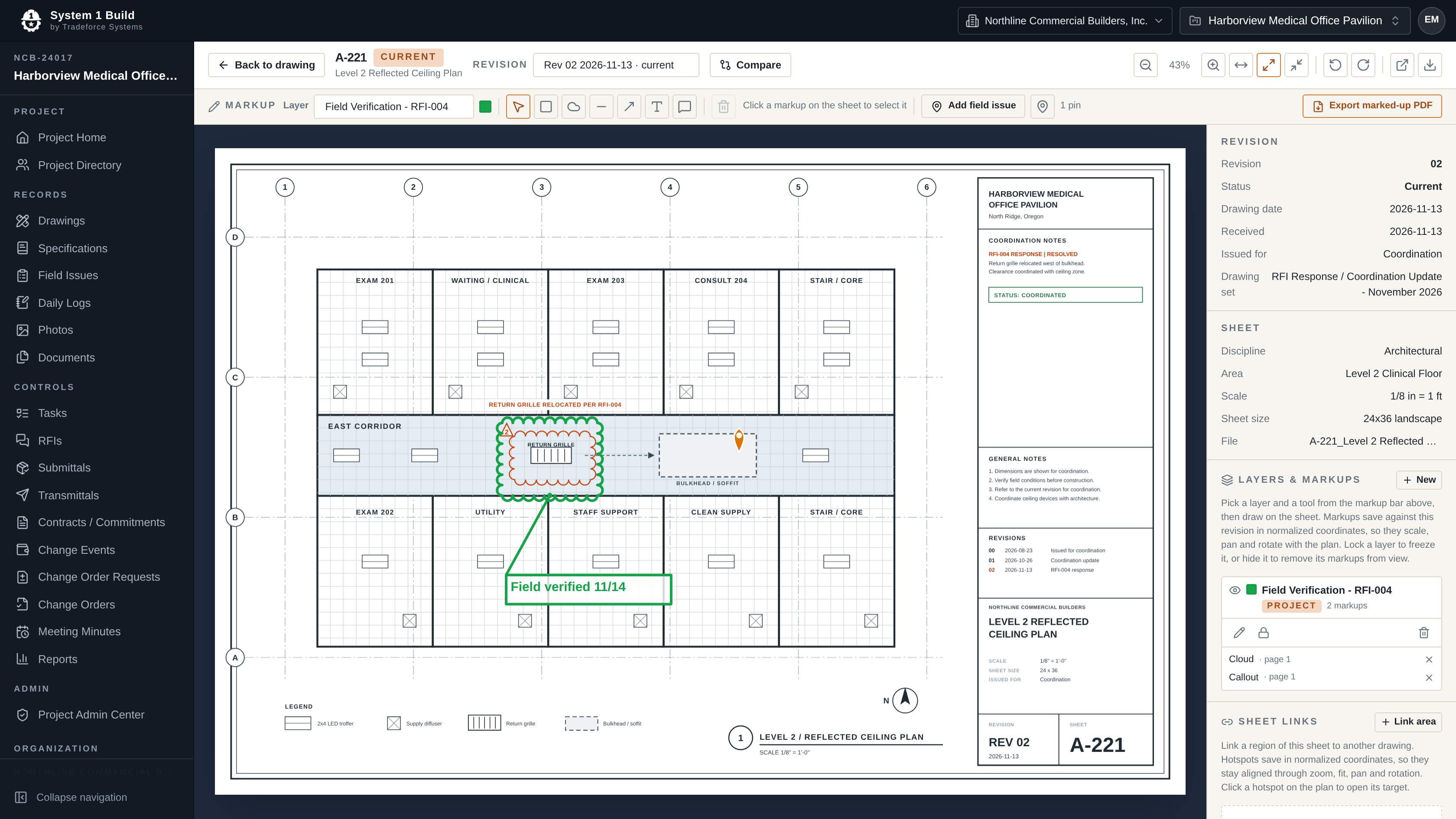
A register that answers “which sheet is current?”
Every sheet carries its number, title, discipline, area, current revision, drawing date, received date, drawing set and status. Obsolete sheets stay out of the way until you ask for them, so the current sheet is a fact anyone with access can look up.
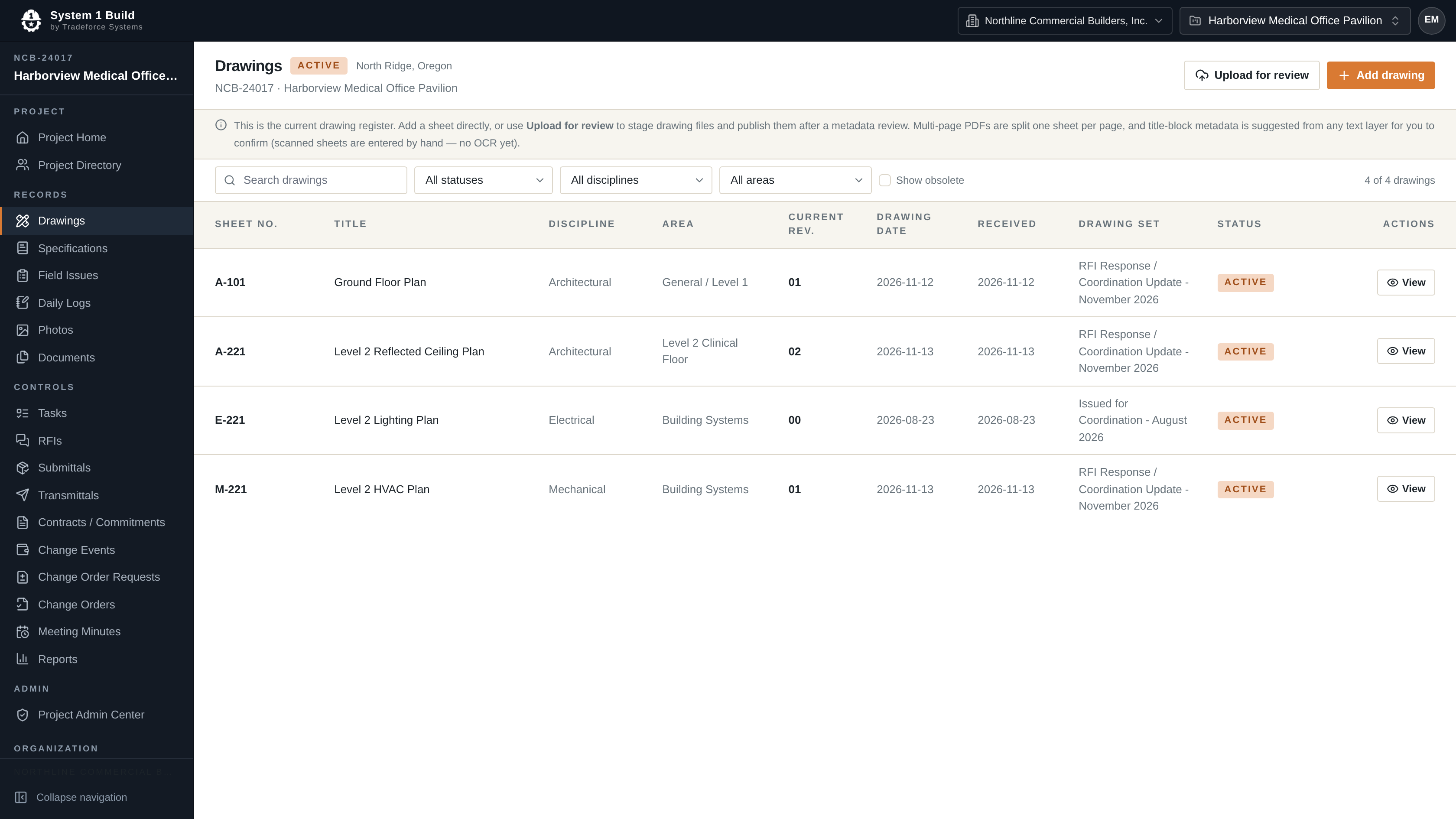
Open the sheet, mark it up, keep the markup with the revision.
Markups save against the revision in normalized coordinates, so they hold their position through zoom, pan and rotation. Layers can be locked or hidden, and the marked-up sheet can be exported as a PDF. A field issue can be raised directly from the sheet, and sheet links let a region on one drawing point at another.
See what changed — not just that a revision exists.
Put the current sheet beside the revision it replaced, side-by-side or overlaid. Rev 02 reads CURRENT; Rev 01 reads OUTDATED.
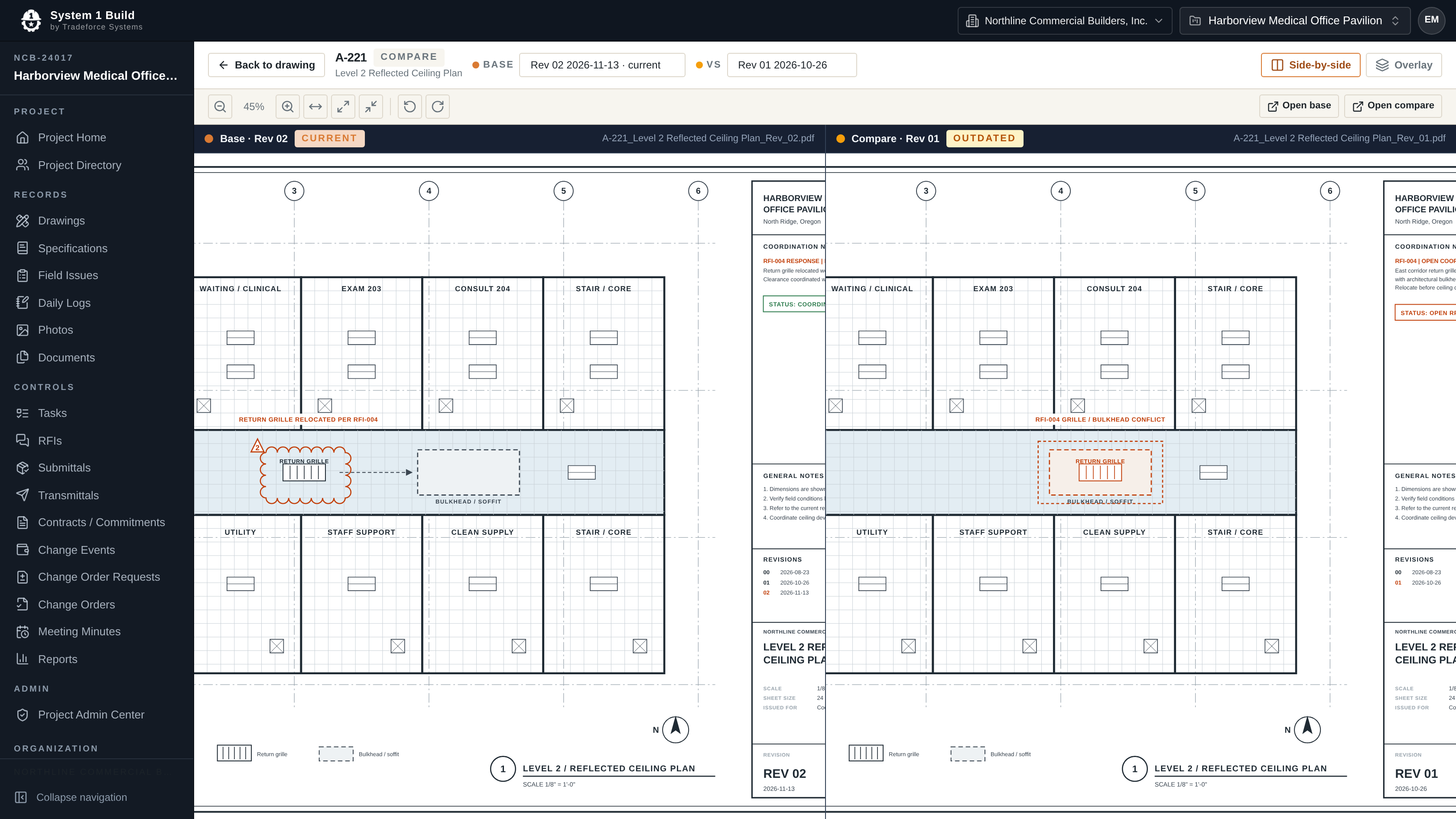
Scroll sideways to see the full comparison, or use the arrow keys.
What drawing control covers.
- Getting sheets in
- Add a sheet directly, or batch upload a multi-page PDF, split one sheet per page and stage the set for a metadata review before it publishes.
- Title-block metadata
- Suggested from the sheet's own text layer for you to confirm.
- Viewer and markup
- Zoom, rotate and page controls; markup layers saved against the revision, lockable and exportable as a PDF.
- Compare and links
- Side-by-side or overlay revision compare with CURRENT and OUTDATED named, plus sheet-to-sheet links.
Drawing questions.
Can I see what changed between two drawing revisions?
Yes. Compare puts the current sheet beside the revision it replaced, side-by-side or as an overlay, with Rev 02 marked CURRENT and Rev 01 marked OUTDATED.
How do drawing sets get in?
Batch upload splits a multi-page PDF one sheet per page and stages the set for a metadata review before it publishes to the register.
See revision control against your own drawing set.
Tell us how your team tracks drawings and revisions today, and we'll come back to you by email with pricing and fit information.